Updated October 15, 2026. This is a documentation-based update, not a hands-on product test.
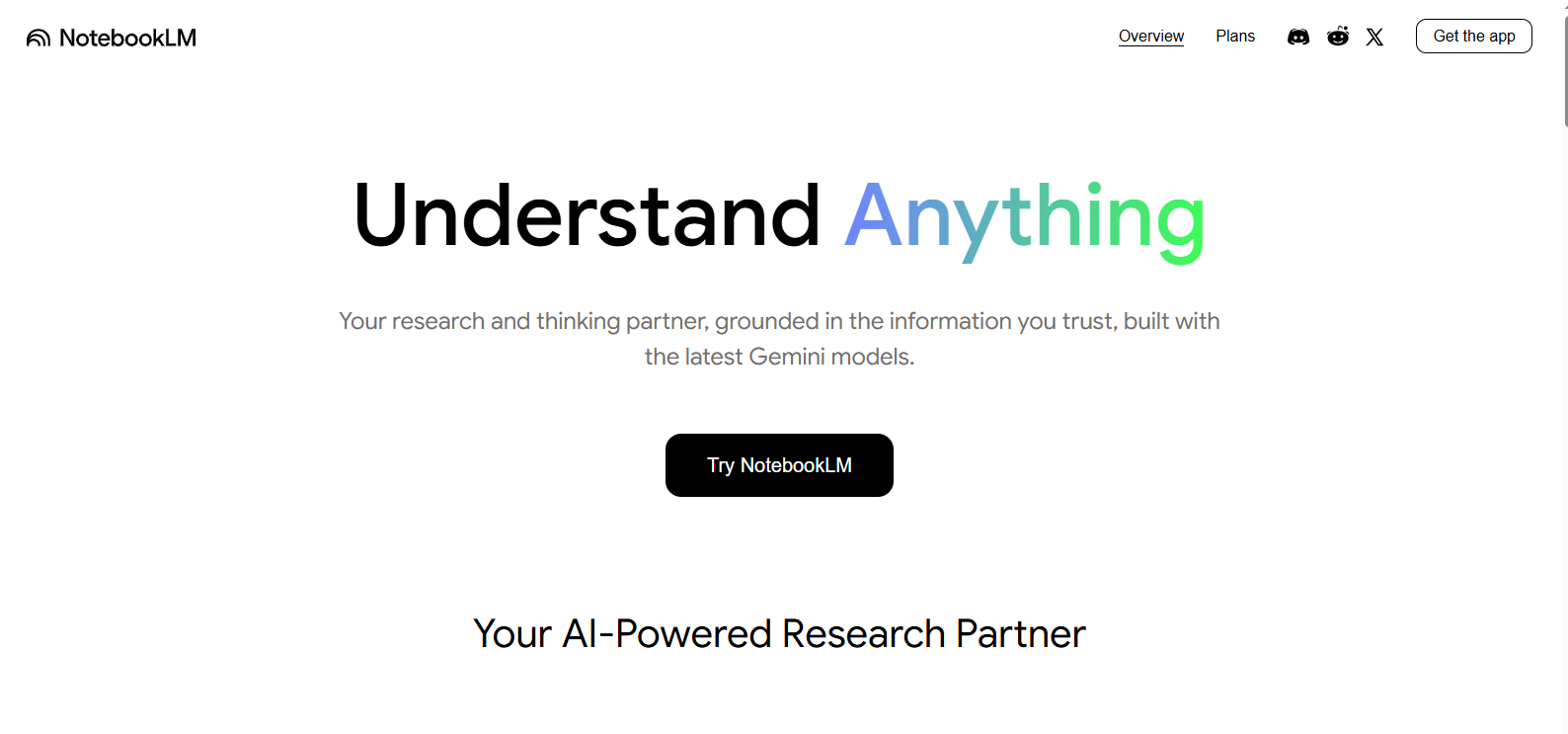
Historical NotebookLM homepage image retained from the original September 2025 listing. Product naming and interface details may have changed; see the current official status below. This is not a GPTOnline product test.
NotebookLM is now Gemini Notebook. Google announced the new name on July 16, 2026, while keeping the product available as a standalone research tool. This existing NotebookLM AI listing uses the familiar name to help readers find it. Read Google’s naming announcement.
Google’s assistant helps you explore a collection of documents, ask questions with source references, and create learning materials. It is useful when your task starts with specific reading material and you want a clearer route through it. A cited answer still needs checking against the original evidence.
What it does
In source-based chat, you can select the documents to consult, ask focused questions, and follow inline citations to the relevant passage. This makes it easier to compare claims and inspect context. Google’s current help also describes experimental chat capabilities for web research, code execution, and downloadable files, so the product should no longer be described as exclusively answering from uploaded documents. Google’s chat guide explains both experiences.
- Audio Overviews: AI-generated listening formats include a two-host discussion, a brief summary, a critique, and a debate. These are generated interpretations of your material. Audio guide.
- Video Overviews: Turn sources into narrated visual explanations. Google warns that generated voices and visuals can contain mistakes; some formats have age or language restrictions. Video guide.
- Study tools: Flashcards and quizzes support difficulty choices, explanations, and reviewing answers. Mind maps and other outputs can help organize a topic, but learning still requires checking the material. Flashcard and quiz guide.
Sources and syncing
The desktop source list includes PDFs, DOCX, TXT, Markdown, CSV, PowerPoint, Google Docs, Slides and Sheets, images, audio, web pages, public captioned YouTube videos, and other formats. Google lists a maximum of 500,000 words per source or 200 MB for uploaded files; Slides and Sheets also have specific limits.
Import behavior matters:
- Google Drive imports now update automatically every few minutes and when the notebook opens. A manual sync option is also available. Losing access to the original file makes its notebook source inaccessible.
- Web imports capture the page’s text, rather than its embedded media or linked pages. Paywalled pages are unsupported.
- YouTube imports use the transcript; audio uploads are transcribed. Neither should be treated as a complete visual record.
- Google-file comments and footnotes are not imported. Check the original for omitted context.
Fast Research can find web or accessible Drive sources; Deep Research can assemble a broader investigation. Review what you import. See Google’s current source requirements.
Compare two project documents
Consider a fictional community garden project with two documents intended for public release: a project brief and a volunteer schedule. This example describes a workflow, not an observed product result.
- Check both documents’ dates and make sure you have permission to upload them. Remove personal contact details. Name the sources clearly, such as “Garden brief, September” and “Volunteer schedule, October.”
- Select only those two sources. Ask: “Compare the opening date, required materials, and volunteer tasks. Cite each claim. Identify contradictions and missing information without guessing.”
- Open every citation supporting a date, quantity, or assignment. Check whether the passage actually supports the answer and whether it belongs to the intended document version.
- If the documents disagree, label the conflict unresolved. A newer date alone does not establish which document has authority. Ask the project owner before producing a final public summary.
The useful deliverable is a checked comparison with open questions, rather than a polished answer that silently chooses between conflicting sources.
Plans and usage limits
There is a free Standard tier. Consumer upgrades are available through Google AI Plus, Pro, and Ultra; qualifying Workspace and Education licenses have their own access levels. The current plan documentation lists these notebook and source caps:
| Access level | Notebooks / sources per notebook |
|---|---|
| Standard | 100 / 50 |
| Plus | 200 / 100 |
| Pro | 500 / 300 |
| Ultra | 500 / 500 or 600, depending on subscription |
Consumer usage now follows a compute-based allowance, reflecting factors such as request complexity and features used. Quotas refresh every five hours until the weekly limit is reached. Plus receives twice Standard’s allowance, Pro four times Standard’s, and Ultra five or twenty times Pro’s, depending on subscription. Check Settings → Usage for your account; these multipliers are not guaranteed numbers of chats or videos. Usage-limit details.
Google began rolling this change out to consumer accounts on September 2, 2026. Workspace documentation still lists separate quotas, so do not apply the consumer model universally. Rollout announcement.
Google AI subscriptions require a personal Google Account. Check the official plans page for your region’s price, currency, billing period, and any promotion. No universal paid price is quoted here: the public page did not expose a reliable numeric price during this review.
Privacy and account eligibility
For personal accounts, Google says notebook content is not used to directly train its foundational AI models unless you choose to provide feedback. Feedback can include prompts, sources, uploads, and outputs; it may receive human review and be retained for up to three years. Data shared with other Google services follows their applicable notices. Avoid including confidential information in feedback. Privacy details.
Qualifying Workspace and Education core-service accounts receive different protections: uploaded files, chats, and outputs are not human-reviewed or used to improve generative AI models, including when feedback is provided. Some editions use the product as an additional service instead. Check your license and administrator’s policies before uploading internal files. Work and school account details.
Personal accounts must meet the applicable minimum age in a supported country. Workspace for Education supports all ages, although some features have age restrictions. Managed accounts need administrator access. Check Google’s eligibility guide rather than assuming every account has every feature.
Mobile differences
Android and iOS apps support source questions, offline Audio Overview listening, and study features. However, Google’s mobile guide currently limits source inputs to PDF, websites, YouTube, audio, and pasted text. It also lists limitations for chat settings and generating notes, mind maps, reports, and data tables. Offline audio access is different from exporting an audio file. Use the desktop web experience when a needed function is missing. Mobile feature guide.
Who it suits
Start with the free tier if you want to compare a small set of permitted documents or study public materials. Choose an upgrade only after checking the limits your actual workflow reaches. For a separate workspace-oriented option, see our Notion AI guide.