
Lindy AI refers to Lindy, an AI work assistant that combines personal assistance with shared team tasks. Its current documentation emphasizes reusable instructions, recurring work and connected information. This guide examines the workflow and administration side of that same service. See the current product overview.
Same-product disclosure: Our Lindy guide covers personal inbox and calendar assistance. These pages describe one product from different angles. They share a vendor, subscription and some use cases; Lindy AI is not a separate competing recommendation.
Updated October 15, 2026. This review uses public documentation; no account, automation or integration was tested.
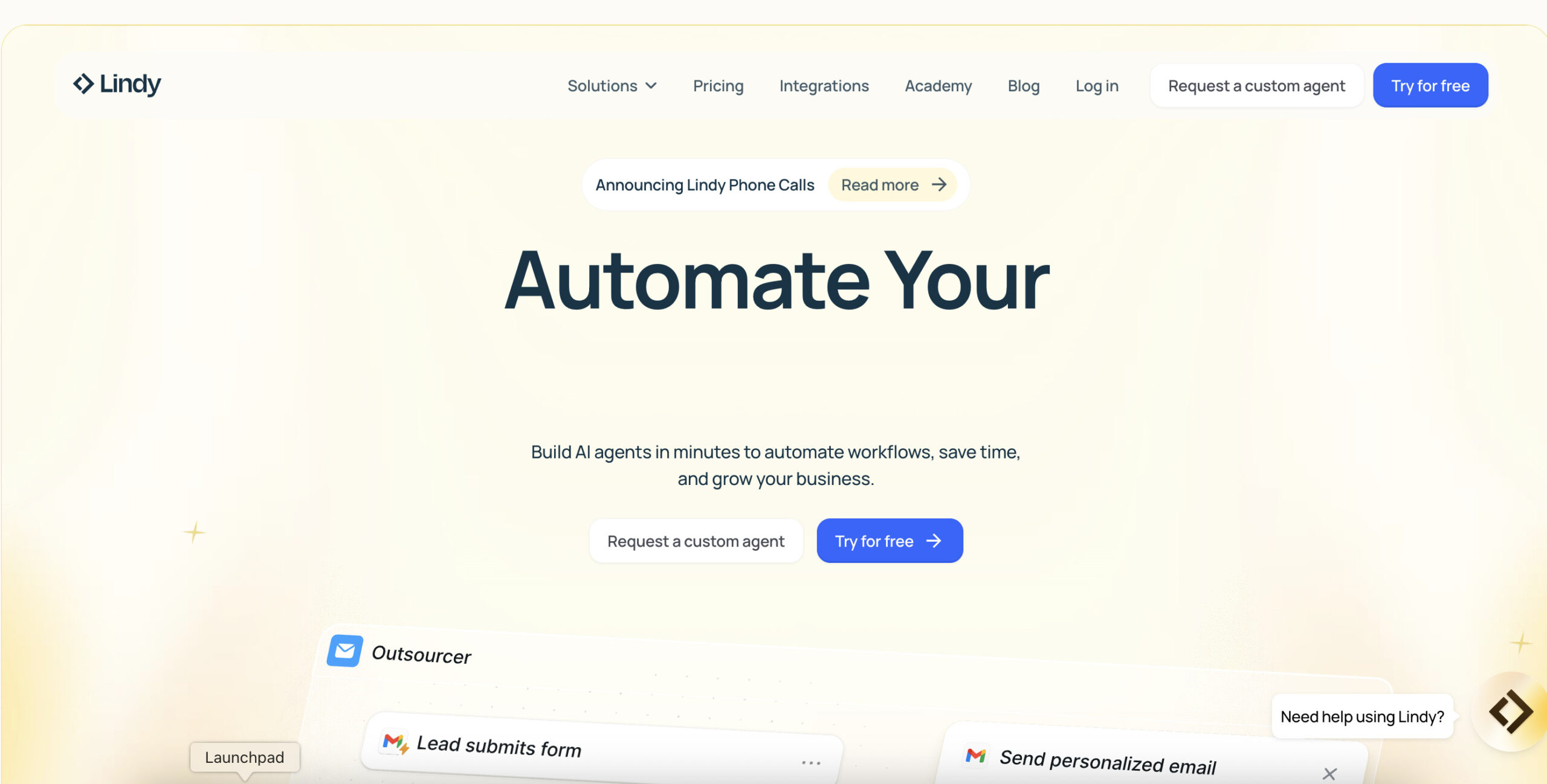
About the featured image: Historical marketing retained from this listing’s 2025 version. Its phone-call announcement, Try for free buttons and speed or business-growth wording do not establish current availability, pricing or tested results.
Is Lindy still an agent builder?
Lindy’s August 2025 release notes described Agent Builder, Autopilot and Team Accounts. That history explains earlier no-code-agent descriptions. Current availability of the former visual builder to new accounts was not verified, so this guide does not present it as a separately available product or promise the old interface.
How current team workflows are organized
Routines: when work happens
A routine combines a trigger, instructions and a destination. It can respond to a schedule or an event. Personal routines are user-managed, while workspace routines require an administrator. Templates and pause controls are documented. A dry run can examine real data while suppressing sends and writes, but it cannot prove that final delivery works. See routine controls and testing.
Skills: how work should be done
Skills store reusable instructions that Lindy selects when relevant. Documentation distinguishes personal, team and built-in skills; administrators manage team versions. The page explicitly labels Skills a gradual early-access rollout, so availability should be checked in your workspace. See skills and rollout limits.
Shared context
The file explorer separates personal, team and system files. Team files are visible across the workspace, with editing reserved for owners and administrators. Version history supports reviewing earlier changes. Decide what genuinely belongs in shared context before adding it. See file scopes and version history.
Meeting folders have their own access settings, including selected people or the whole team. Review folder visibility and recap recipients rather than assuming every recorded call stays private. See meeting access settings.
Connections and permission limits
Lindy names connections such as Gmail, Slack, Notion and HubSpot on its official website. Check the specific application and required action rather than choosing by an integration-count headline; official pages currently advertise different totals.
A shared connection lets the workspace use the connected account’s permissions. Guardrails can allow writes, request approval or disable writes, but only in shared Slack threads. Reads and private channels are excluded. One integration rule covers its connected accounts. See integration guardrails.
Planning checklist: Identify the account supplying access, the people who may request work, the destination of the result and the person responsible for review. Separate a request to prepare a draft from permission to send it. Start with low-risk data and a destination you control.
An example team workflow
Fictional example: A small agency wants a Friday project summary. Its administrator could define a limited set of project records, a short report format and one internal destination. A reviewer would compare the first result with those records and flag missing owners or dates. The team could then decide whether a recurring run is useful. This example illustrates a review process; it is not evidence that Lindy completed that workflow successfully.
Seats, credits and billing
The live pricing page showed Team from US$29.99 per active user/month for 3,000 credits on October 15, 2026. Its selector also offered US$49.99 for 5,000 credits. These are different credit tiers; confirm your chosen allocation before paying.
Credits are pooled across a workspace. Monthly allocations expire at the next cycle; purchased top-ups remain available. New Slack teammates receive a one-time seven-day trial before their seats are billed. Administrators should review added seats and usage caps: an already-running task can exceed a person’s cap. Documentation still names Plus, Pro and Max and directs readers to Billing for current details. See seat and credit rules.
The terms describe non-refundable purchases and cancellation at the paid term’s end. They also allow charges for enabled overages. Check your selected plan and order terms instead of assuming an absolute spending limit.
Privacy and rollout cautions
Lindy says it and its providers do not use customer data to train AI models. Its privacy notice allows service-provider processing, so assess data handling and retention before connecting sensitive business information. These vendor statements were not independently audited for this review.
The service is documented through web, Slack, email and phone messaging. Microsoft Teams assistant access remains marked coming soon; recording Teams meetings is a different capability. Check current setup documentation for the channels your team needs.
Is it a fit for your team?
Evaluate Lindy against one defined workflow, its review effort and its total seat cost. A successful draft alone does not validate unattended changes across business systems. If the main need is individual email and calendar help, the personal-assistant guide is the better starting point. Both guides cover the same product.