
Updated October 15, 2026.
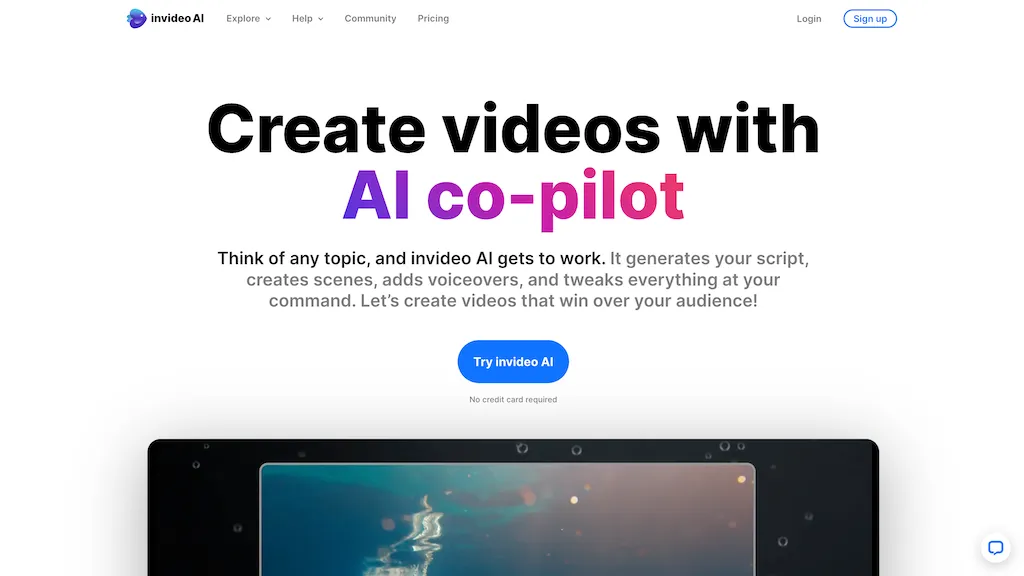
Image note: The historical InVideo marketing image is retained from the original article. It shows an earlier homepage, not the current editor.
InVideo combines AI-assisted video creation with a browser-based editing workspace. It can help assemble footage, generate media and revise a timeline, but the practical decision is how much AI work your project needs. Manual adjustments and AI requests have different costs, while stock assets, generated scenes and uploaded recordings require different checks.
This guide reviews official documentation and publicly displayed plans. We have not run a hands-on production test, and the example below is fictional.
Which InVideo product?
The current InVideo Editor provides a multitrack browser timeline, keyframes, color controls, audio mixing, effects and transitions. You can edit clips yourself or ask an AI agent to change the sequence, then inspect the resulting cuts. Teams can also collaborate on projects.
InVideo AI includes prompt-led creation and access to generative models. Do not confuse the current Editor with the separate InVideo Studio product. The company’s AI-versus-Studio guide describes Studio’s template-and-canvas workflow and says the two platforms require separate subscriptions. That older distinction does not mean today’s InVideo AI lacks manual timeline editing.
Ways to create
- Edit existing footage: Arrange your recordings, refine timing and mix audio on the timeline. According to the Editor credit guide, manual editing does not spend AI credits; agent work and model generation do.
- Use stock media: InVideo’s stock-media announcement describes Agent Two finding footage, images and licensed music for a project. Review whether the selected material actually represents your subject.
- Generate individual shots: Model-specific workflows accept different inputs and settings. For example, the Veo 3.1 guide describes text or image input, optional opening and closing frames, and clips lasting four to eight seconds. A generated shot is not automatically a finished, fact-checked video.
Plans and billing
The live pricing page displayed these one-seat offers when checked on October 15, 2026:
- Starter: 400 credits per month; US$20 billed monthly, or an advertised annual offer of US$120 upfront, equivalent to US$10 monthly.
- Plus: 2,000 credits per month; US$60 billed monthly, or US$360 upfront annually, equivalent to US$30 monthly.
- Max: 5,000 credits per month; a promotional US$135 monthly payment with US$150 renewal shown, or US$900 upfront annually, equivalent to US$75 monthly.
These are dated promotional observations, not a price guarantee. Confirm the selected seats, credit allowance, billing period, renewal amount and final checkout total. Starter limits frontier-agent access to Lite; Plus and Max list Lite, Pro and Ultra. The provider’s currency guidance says website prices are USD and app-store pricing may differ.
A free plan is available without a payment card, with limited credits replenished weekly on Monday at 00:00 UTC. Check the allowance and available operations in your account rather than assuming that free access covers an entire project.
Budget for revisions
Credits cover AI processing and media generation. The plans-and-credits guide says video-model charges vary with duration, model, resolution and audio settings. Exporting or downloading does not itself consume credits. Monthly subscription credits expire rather than rolling over; separately purchased credits last up to 12 months or until the paid subscription ends, whichever comes first.
For agent-led work, use generation approval settings to review proposed media before it runs, and inspect Project Usage afterward. Agent processing can also consume credits. Budget for discarded attempts and corrections, not simply the final video’s runtime. A plan’s illustrative clip count is not a promise that every attempt will be usable.
A practical example
Fictional, untested example: Maple Street Bookshop wants a 30-second vertical announcement for a Saturday puzzle exchange. It has its own footage of the shop and an approved event notice.
- Define the facts. Write down the date, opening hours, participation rules and contact details. Decide which information must remain readable on a small screen.
- Choose the evidence. Use actual shop footage for the entrance and exchange table. Do not ask a generator to invent stock levels, visitor numbers or endorsements.
- Build a rough sequence. Request an opening shot, a short explanation and an end card. Identify the approved source clips and specify that the event details must remain unchanged.
- Review before spending more. Check the proposed model and generation cost if an extra scene is needed. A simple manual cut may solve a pacing problem without another generation.
- Inspect the deliverable. Read every caption, listen to names and dates, check music permissions, and play the exported file on a phone before publishing.
The useful measurement is the total effort and credits needed to reach an acceptable video. This example does not establish a completion time, production cost or likely audience response.
Exports and watermarks
The current export guide lists H.264 MP4, audio-only files and PNG stills, plus editable-project options for other editors. Check resolution, frame rate, audio and the selected timeline range before exporting.
InVideo’s watermark guidance distinguishes preview watermarks from the final paid-plan export. Files downloaded before upgrading retain their watermarks; re-export the original project with the appropriate settings. Free manual editing does not by itself establish watermark-free access to every AI or premium-media workflow. Verify the export conditions for your actual project.
Commercial use and privacy
The terms permit commercial use of generated outputs, subject to applicable law, third-party rights and asset licenses. That is not a guarantee of exclusive copyright or clearance for every use. Stock footage and music retain their own licensing conditions. Obtain permission for uploaded material and identifiable people’s faces or voices, and check the intended distribution and advertising use before publishing.
The privacy policy says InVideo does not train its proprietary models on user content. However, it distinguishes Standard Tier AI providers from Experimental Tier providers, which may use content for model improvement under their own practices. Check the selected provider before uploading confidential client material. Avatar and voice-cloning features involve additional personal-data processing and consent.
Cancellation and fit
Subscriptions renew automatically unless canceled. The current terms describe a seven-day refund exception for an initial purchase or renewal only when no credits or premium features have been used, subject to applicable law. There are no partial-period refunds under that policy. Cancellation guidance says access continues through the paid period; store purchases use the relevant store’s process.
InVideo is worth evaluating when you want both AI assistance and hands-on control. The official site links iOS and Android apps; verify the required feature on your intended device. For a comparison focused on product-marketing creation, see our Pippit AI guide. Start with one representative project and compare correction effort, usable exports and total cost before committing to a larger workflow.