Updated October 16, 2026. This guide is based on Redraw’s public documentation. We did not create an account, generate content, install the plugin, or test checkout, processing speed or output quality.
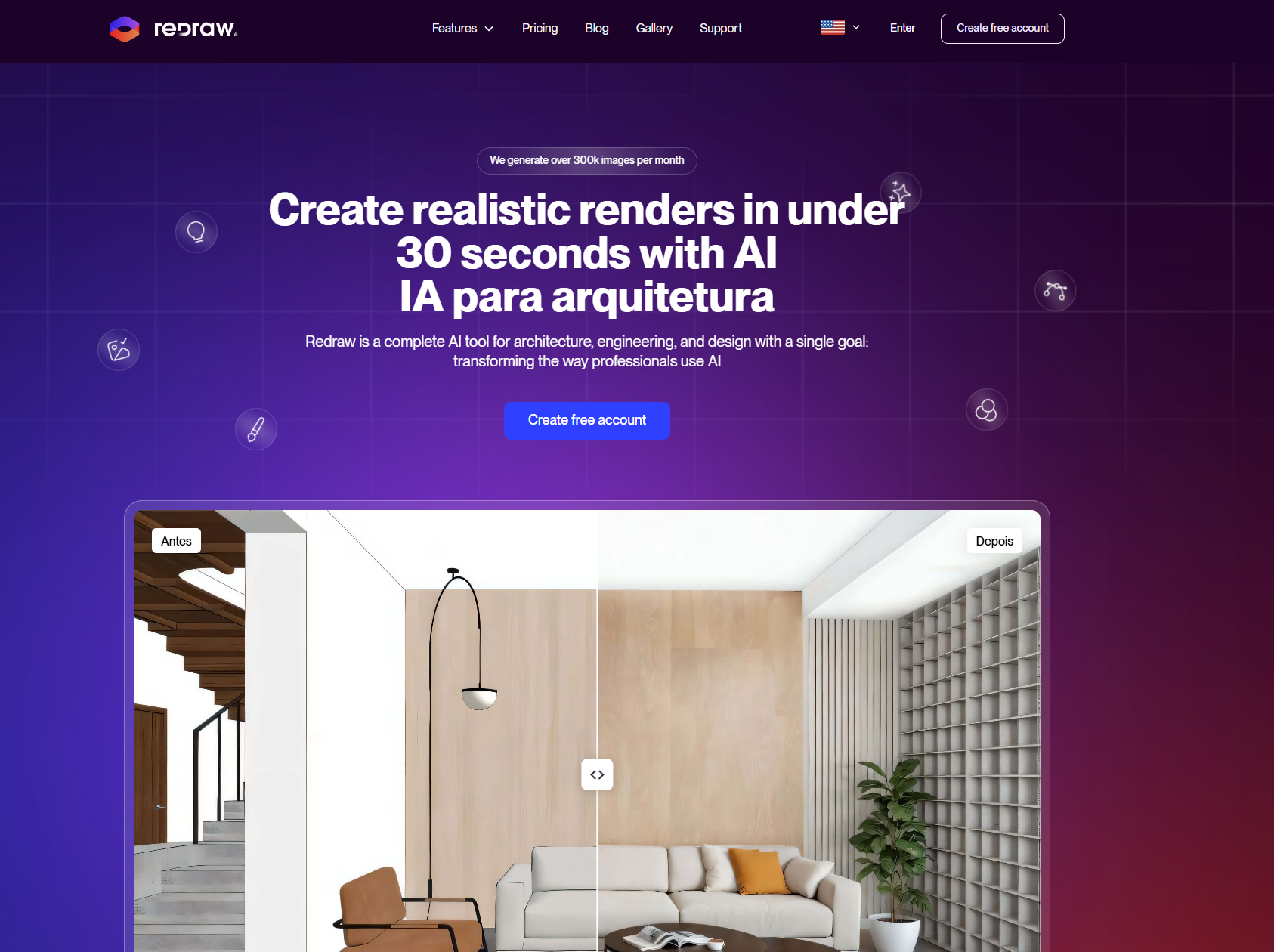
Image note: the retained image shows a purple Redraw homepage and an interior-rendering example. The speed and realism claims visible in that image are historical marketing, not performance measurements from this guide.
What is Redraw AI?
Redraw is a browser-based AI visualization platform aimed at architecture and interior-design work. Its core rendering workflow starts from an image of a project, such as a screenshot from SketchUp, Revit or Archicad. It also advertises sketch rendering, text-to-image and idea generation. Cloud processing means the main web service does not require a local rendering installation. See Redraw’s product overview.
Think of it as a way to explore and present visual possibilities. A convincing picture still needs to be checked against the actual design. This guide does not establish dimensional accuracy, construction suitability or a guaranteed turnaround time.
Features and practical differences
The documentation separates several workflows. Choosing the one that matches your starting material is more useful than treating every option as the same renderer.
| Workflow | What the documentation describes |
|---|---|
| Render a project image | Render Images offers multiple models. Redraw’s V4 Lumi includes interior/exterior selection, lighting controls, references and optional prompts. Available controls and coin costs depend on the selected model. |
| Improve an existing render | Improve Render V4 starts from an uploaded image. Its presets include Refinement, Fidelity, Realism, Premium and Lighting. Fidelity/Creativity indicators describe preset behavior; they are not adjustable sliders. |
| Edit a selected area | The Image Editor supports whole-image instructions, selected-area edits and filters. Selection tools include brush, lasso, rectangle and magic selection; one operation can contain up to four editing layers. |
| Explore another viewpoint | Multi-Angle derives new perspectives from an image. Choose one view with presets/manual controls or a four-angle mosaic. These are generated interpretations to review, not proof of unseen geometry. |
| Create a short video | The Redraw video guide describes paid-plan generation from an image, first/last frames or text, with 5–15-second duration choices. Quality and duration affect coin consumption. |
| Generate a 3D object | The 3D Object feature page describes image- and text-based object generation and GLB export. Check your target software’s import requirements before relying on a generated asset. |
For SketchUp users, Redraw Capture is a separate, free preparation extension. The download page lists Windows/macOS and SketchUp 2017+, with 2024+ recommended. It helps prepare captures; it does not model the project or replace its blocks and textures.
A sensible first workflow
- Prepare a readable source. Redraw’s input-quality guide emphasizes lighting, edges, resolution and shadows. Choose the appropriate tool and review the upload’s AI score before spending credits.
- Choose the generation settings. For a project screenshot, open Render Images, select a model and choose the environment. Add a reference or brief instruction where supported. Check the displayed coin cost before generating. Rendering instructions.
- Review before refining. Compare the result with the source: openings, furniture placement, circulation, materials and reflections. Keep a record of changes you intended and changes you did not.
- Localize a small correction. In Select Area mode, mark the relevant region and describe the desired edit; add a reference if useful. Editing instructions.
- Approve and save deliberately. Inspect the final image at its delivery size, retain the original design files and label AI-assisted visualizations clearly when presenting them.
Pricing, coins and billing
The English pricing page displayed the following advertised amounts on October 16, 2026. U$ is the site’s displayed currency notation; see the currency caveat below.
| Plan | Monthly | Annual total | Coins |
|---|---|---|---|
| Test | U$0 | Not applicable | 10 once |
| Basic | U$15 | U$150 | 600/month |
| Expert | U$32 | U$320 | 2,000/month |
| Business Elite | U$92 | U$920 | 7,000/month |
The cards list 1 simultaneous user for Basic/Expert and 15 for Business Elite. Basic lists upscaling to 4K; Expert/Business Elite list 8K. The comparison’s generation counts are alternatives for spending the allowance, not separate additive quotas. For example, Basic lists 300 Render Image generations or 30 Image to Video generations.
The trial guide says the introductory coins do not renew and free-plan images carry a watermark; paid-plan images do not. The pricing page says no credit card is needed for the trial.
Billing and coin documentation says annual plans are charged upfront while subscription coins refresh monthly and do not roll over. It also lists Basic restrictions for some advanced 3D/video options. Its description of 15 simultaneous accesses does not promise 15 separate accounts; confirm the team setup you need with support.
Currency needs confirmation: English prices use U$, but the terms say charges are processed in Brazilian reais and mention possible IOF card charges. Confirm the currency, taxes and final total before paying.
Refund caveat: the September 25, 2026 terms allow an initial-subscription refund request within seven days only if no more than 30 coins were used; renewals are excluded. This is narrower than the homepage guarantee. Subscriptions renew automatically until canceled.
Cancellation and a refund are different requests. The billing guide says cancellation stops the next renewal while access continues through the paid period. The account guide directs users to My Profile → Plan and Billing to manage or cancel a subscription.
The June coin guide says extra coins cannot be bought; September terms describe purchases on eligible plans. Confirm availability with support before relying on top-ups.
Rights, privacy and storage
Under the terms, users retain generated-content rights subject to their plan. Redraw receives anonymous, nonexclusive permission to use generated images for education, study, marketing and platform improvement. Confirm commercial and post-cancellation use for your plan.
Download keepers promptly: the terms say free-plan images are deleted after 30 days; after a paid plan ends without another active paid plan, deletion follows 30 days later.
The privacy policy describes advertising cookies, Microsoft Clarity/Advertising, heat maps and session replay. It gives an account/data deletion route under Profile → Personal Data → Delete my data and through support. The public policy does not establish a blanket no-training promise or a project-specific confidentiality agreement.
For confidential client projects, obtain permission before uploading and ask Redraw how inputs, outputs and third-party AI providers are handled. Remove identifying details where possible. Verify rights to reference photos and other uploaded material, and do not assume an attractive output clears third-party rights.
Fictional example: a small café concept
This is an illustrative workflow, not a completed Redraw test. Imagine a designer has a café model with a fixed doorway, counter and seating layout. The goal is to compare two finish directions for a discussion, not approve construction details.
- Save a clean source view and note the features that must remain unchanged.
- Try one visual direction first, then inspect every doorway, chair and counter edge against the source before creating more variations.
- If only a wall finish needs revision, request a focused edit rather than treating the whole scene as approved.
- Present candidate images beside the original view, mark discrepancies and explain which details remain conceptual.
- Keep the editable model as the source of truth and reserve time for manual correction.
A possible instruction would be: “Explore a muted terracotta finish on the selected back wall; keep the doorway and counter positions unchanged.” That wording expresses an intention, not a guarantee that the model will preserve those features.
Who should consider it?
Redraw may be worth evaluating when your task is visual exploration or presentation and you can inspect the results. Begin with a non-confidential sample, judge usable outputs rather than promotional examples, and track coins spent on rejected attempts as well as accepted ones.
If your deliverable requires verified dimensions, exact material specifications or dependable multi-view geometry, keep those checks in your established design workflow. The documentation reviewed here cannot substitute for a hands-on assessment of those requirements.
For a separate look at general graphic creation, see our Recraft AI guide.