Updated October 15, 2026. Unscreen AI is a discontinued video background-removal service. Canva’s official closure notice says Unscreen.com had closed as of June 29, 2026. The original website now redirects to Canva’s Video Background Remover. Former users should treat old Unscreen pricing, upload instructions, and integration guides as historical information.
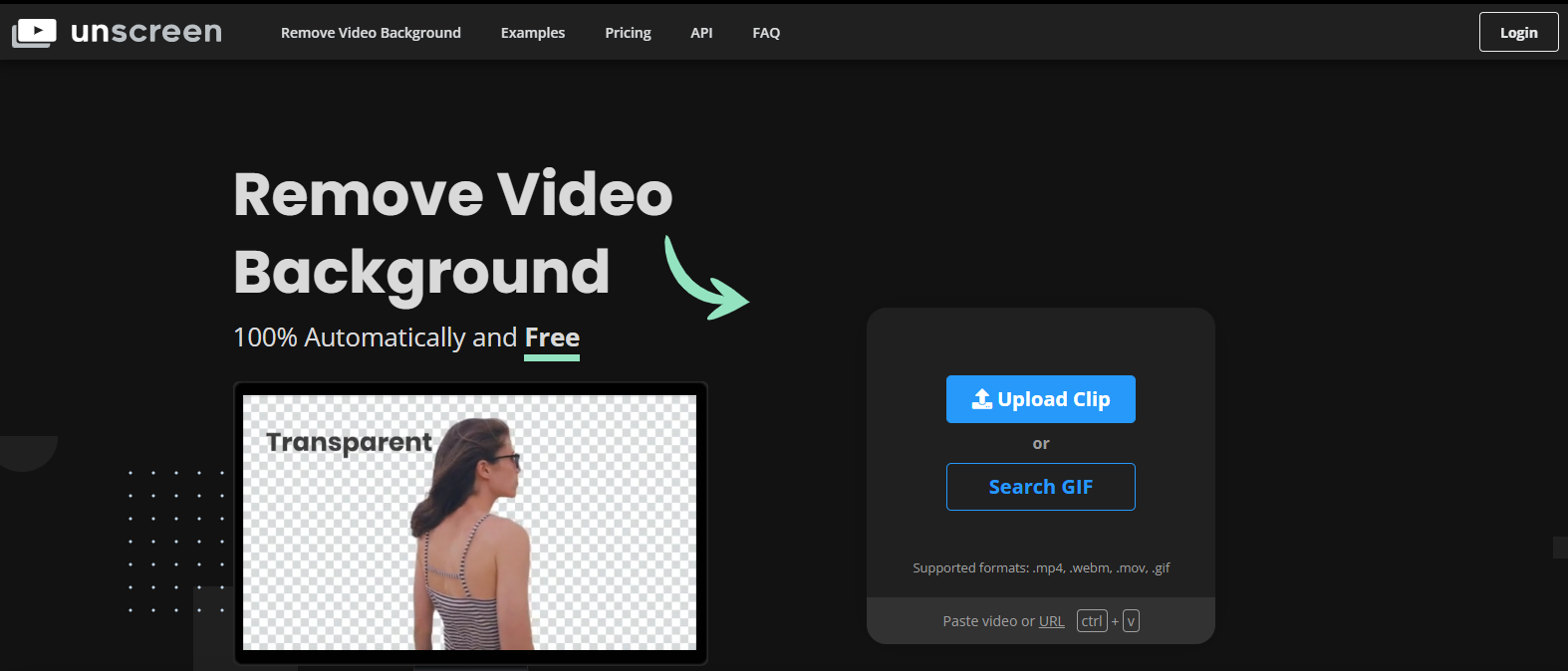
Historical Unscreen.com homepage retained from the original 2025 article. The Free, Upload Clip, and API labels shown belong to the former service. This archival image does not show a current interface or a new processing test.
This update is based on current official documentation; no new processing test was run.
What happened to Unscreen AI?
Unscreen was known for automatically separating subjects from video and GIF backgrounds, reducing the need to prepare footage with a green screen. Its earlier offering included free previews and paid processing, with options aimed at creators and professional editing workflows.
Canva’s closure notice explains that Unscreen is part of Canva and that the team is focusing on Canva’s video background-removal feature. This page therefore preserves the product’s history while directing readers to the currently documented workflow. There is no current Unscreen.com free-plan or per-minute subscription offer to recommend.
Where to remove video backgrounds now
The official destination is Canva’s Video Background Remover. It removes the background from a selected clip inside Canva, where you can place the subject over a new image or design and export the finished composition.
Canva markets this feature as part of Canva Pro. Its current help article describes background-remover access as included with paid plans. Check the entitlement shown in your own workspace before subscribing, especially when using an organization or education account. An old Unscreen subscription price should not be used as a Canva price estimate.
Check the input limit before uploading
According to Canva’s current background-removal help article, the original video must be less than 10 minutes long. If you shorten a longer video in Canva, download that shortened version and upload it again before applying the feature. On mobile, Canva instructs users to upload through the Uploads tab.
Some older Canva tutorials still mention a 90-second limit. The current Help Center guidance is the reference used for this update. A background-removal input limit also differs from the duration allowed for an assembled video’s final download.
A practical editing sequence
- Keep an untouched copy of the source clip and choose a short representative segment first.
- Add the clip to a Canva design, select it, and choose BG Remover in the editor toolbar.
- Place the isolated subject over the background you intend to use.
- Play the entire segment, including turns, gestures, and moments when objects overlap.
- Download a sample and inspect it in the app or player that will receive the finished asset.
Export formats and limits
Canva’s feature page describes an MP4 download. Its video and GIF download guide also documents a transparent-background toggle for GIF exports. It lists MP4 exports up to two hours and 3840 × 2160 pixels, and GIF exports up to two minutes and 1920 × 1080 pixels, for Pro, Teams, Nonprofits, and Education accounts.
Those export ceilings do not increase the background-removal input limit. The documented GIF transparency option also does not establish that an MP4 download contains an alpha channel. If you need reusable transparent footage for another editor, confirm the actual format and transparency behavior with a sample before committing to a workflow.
Quality checks for former users
Use the following checks to evaluate a replacement on your own footage.
- Fine edges: Inspect hair, fingers, glasses, and narrow gaps at the intended display size.
- Motion: Watch for edges that flicker, briefly disappear, or leave fragments behind during quick movement.
- Background contrast: Preview against both a light and a dark background to expose unwanted outlines.
- Delivery: Check dimensions, sound, timing, and the downloaded file rather than relying only on the editor preview.
- Production needs: Write down whether you need an interactive editor, batch processing, an API, or a plugin before comparing services. Verify each requirement independently.
Existing exports and similarly named websites
Canva says previously exported Unscreen videos can continue to be used, including personal, commercial, and client projects, subject to the restrictions in its closure notice. Keep your saved source files and exports together. Direct account or billing questions to the support route in that notice.
Check domains carefully: unscreen.io identifies itself as independent, and unscreen.pro disclaims affiliation with Unscreen.com. Neither should be mistaken for the original service or its official account-migration destination. The verified route from Unscreen.com leads to Canva.
For broader video-editing research, see our InVideo overview.