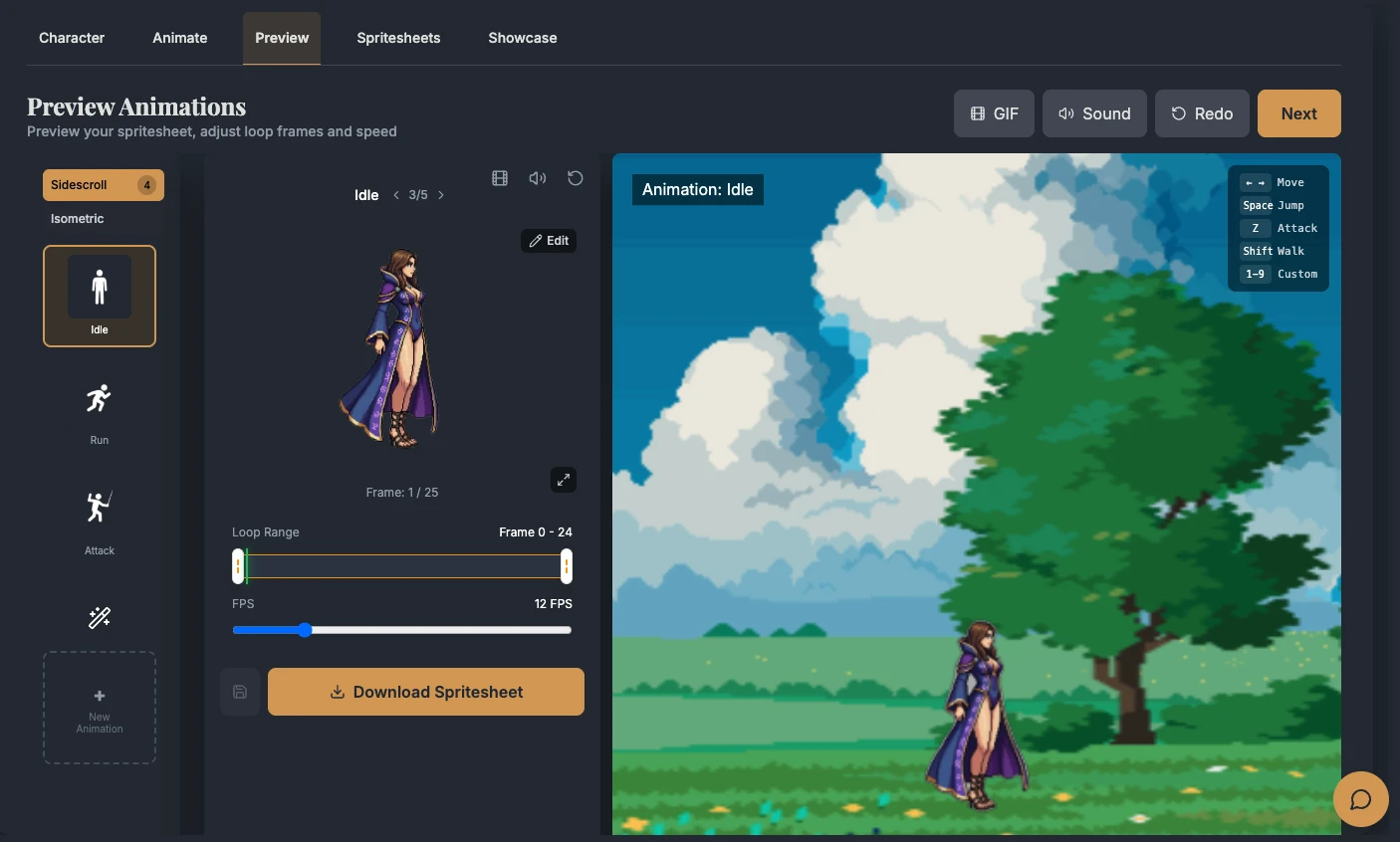
Official AutoSprite product screenshot from its press kit, used under its editorial-use permission. The example is supplied by the vendor, not a GPTOnline test result.
AutoSprite is an AI game-asset tool that turns a character image into animated spritesheets. Its main appeal is a short path from an existing character design to movements such as idle, walk, run, jump and attack. Developers can also describe a custom motion. The resulting files can become material for a 2D game prototype, subject to visual checks and engine setup.
This guide is based on AutoSprite’s official documentation, pricing and terms, checked on October 17, 2026. It is a documentation-based overview, not a hands-on performance test.
What does AutoSprite do?
The documented workflow starts with a drawing, pixel-art character or other suitable image. AutoSprite recommends a clear, front-facing character. You select movements, generate animations, then preview the results and adjust playback speed or trim frames before exporting. Its introduction also describes a built-in game preview.
The distinction between a still character and an animation matters. An attractive source image does not establish whether a walk cycle will read clearly at gameplay size. Consider AutoSprite a way to produce candidate animation assets, then evaluate those assets in the context of the game you are building.
Exports and game-engine workflow
A standard download contains a transparent PNG spritesheet and a JSON atlas. The PNG places animation frames together; the JSON describes frame coordinates, animation sequences and timing. AutoSprite’s export reference documents individual-animation downloads and full-character exports.
The official FAQ lists Unity, Godot, Phaser, GameMaker and RPG Maker among compatible engines. Compatibility still leaves project-specific work: verify your import settings, sprite dimensions, playback rate and transitions between states. A file format alone does not establish that an animation meets your game’s artistic or technical requirements.
AutoSprite pricing and credit limits
The public pricing page lists Starter at $12 per month for 500 credits and Pro at $29 per month for 1,500 credits. Higher-volume arrangements use custom pricing. These are the displayed monthly prices; the reviewed public pages do not explicitly identify the dollar currency code. Confirm currency, taxes and the final charge before subscribing.
The more detailed credits reference adds important limits:
- Free: 15 monthly credits, a three-credit daily login bonus and two spritesheet exports per month.
- Starter: unlimited spritesheet exports and access to all four video tiers, with generation still limited by credits.
- Pro: a larger credit allowance, more included redos and unused subscription-credit rollover capped at twice the monthly allowance while the subscription remains active.
The default turbo animation costs five credits. Other tiers and longer clips can cost more. The advertised estimates of approximately 100 or 300 sheets therefore do not mean unlimited generation or 100 or 300 complete multi-animation characters. New generations consume credits; included free redos apply only to the turbo tier. Exporting does not itself consume generation credits, but the Free plan still has its separate export cap.
Subscriptions renew automatically unless canceled before renewal, according to the terms. Check the current plan and billing details before purchase, especially because the press-kit plan summary differs from the detailed pricing documentation.
A hypothetical first project
Suppose you own an original knight illustration and want to evaluate it in a small platformer. The following is a suggested evaluation workflow, not a result obtained during testing:
- Choose a narrow goal. Start with idle and walk animations for one character. Leave attack effects, multiple costumes and extra directions for a later decision.
- Inspect the source. Make sure the entire character is visible and the important shapes are easy to distinguish. Keep an untouched copy so that any changes can be compared with the original.
- Generate one movement first. Look at the silhouette, weapon, hands and feet throughout the sequence. Decide whether the result fits the intended style before spending credits on another motion.
- Check the loop and transitions. Compare the final frame with the first, then examine how idle would transition into walking. Watch at the size the player will actually see.
- Import a small sample. Check the sprite’s position against the ground, its apparent scale and the frame boundaries in your engine. Record the settings that produce an acceptable result.
A useful pass condition is specific: the character remains recognizable, its feet align consistently with the scene, and the animation reads at the intended display size. If that small sample needs substantial manual repair, include that work when deciding whether a larger batch is worthwhile.
Quality, privacy and usage rights
AutoSprite’s FAQ acknowledges that AI generation can change small character details. It also discusses blurry output, complex backgrounds and frame-count choices. Evaluate these issues on your own source material; the vendor’s selected examples do not establish an independent success rate.
The terms say users retain rights in their inputs and receive output rights subject to applicable law, third-party rights and the rights attached to their source material. That is not a guarantee of originality or freedom from infringement. Upload only material you have permission to process, and review any asset intended for a commercial release.
The same terms state that AutoSprite does not use uploads, prompts or outputs to train or improve models beyond providing the service. They also describe reliance on third-party providers. Treat this as the vendor’s policy statement, not an independent privacy or security certification.
Who should consider it?
AutoSprite is relevant when the immediate task is turning a character concept into candidate 2D animations. A small evaluation is more informative than buying around a headline sheet count. Teams exploring a separate 3D-asset workflow can also read GPTOnline’s Meshy.ai overview; the two workflows should be assessed against different output requirements.