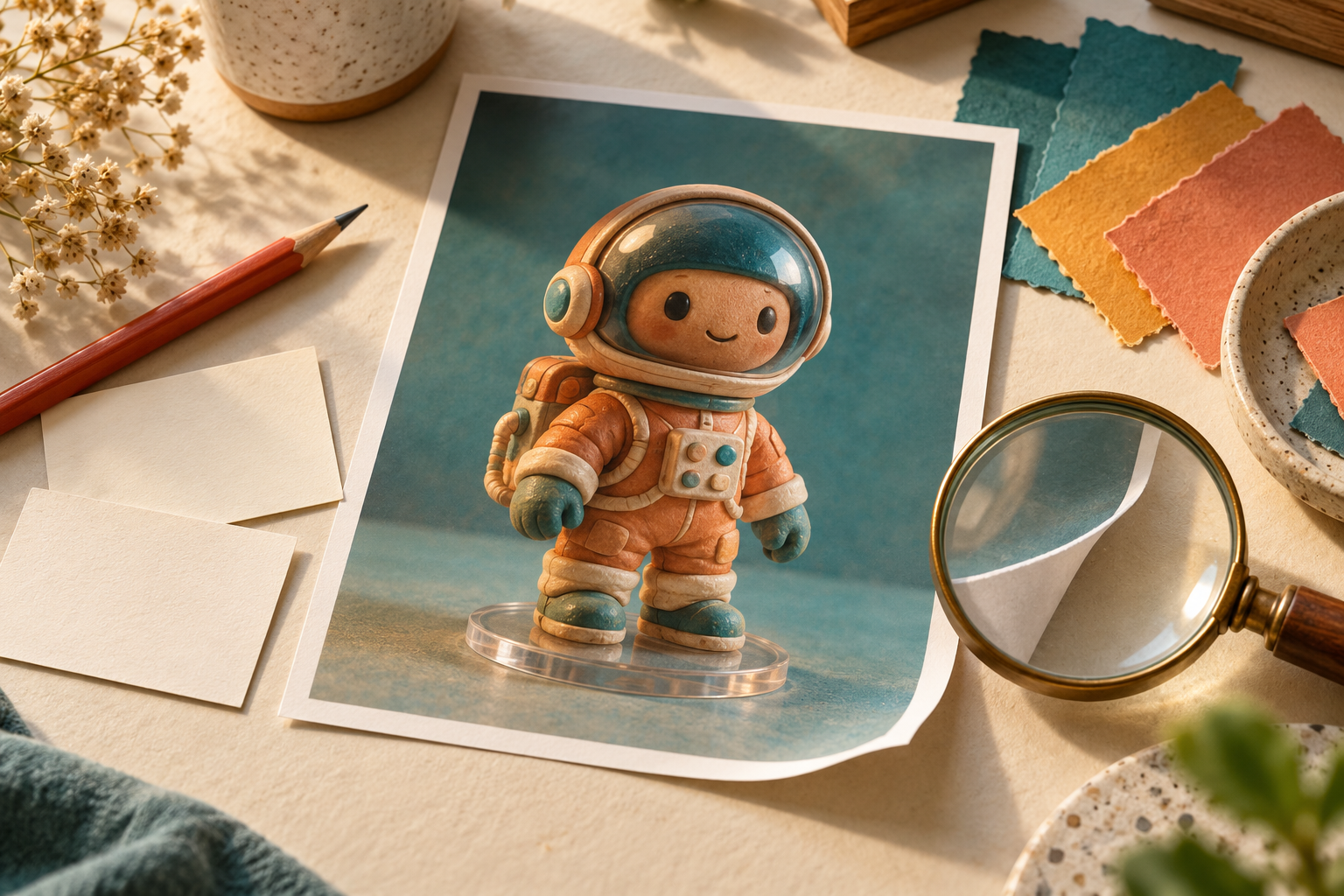
You can turn a portrait or an original character illustration into an image that looks like a collectible figurine: a miniature on a desk, a clear display stand, and a matching presentation box. Google’s Gemini image tools can help create this look from a reference image and a written description.
The result is a 2D image with a 3D-style appearance. This workflow does not produce an editable 3D mesh, a Blender project, or a print-ready STL file. A picture of a sculpting application on a monitor is also part of the generated scene, not evidence that a real model was created.
Originally published September 9, 2025. Updated October 15, 2026. This revised guide uses Google’s official documentation for the steps below. The controls were also checked read-only in one account; no photo was uploaded to Gemini and no image was generated in Gemini for this revision. The end-to-end output is untested. Interface labels, available models, and account limits may change.
What does “Nano Banana” mean?
Google identifies the original Nano Banana as Gemini 2.5 Flash Image, an image-generation and editing model with image and text inputs and outputs. The name is now also used for a family of image models. Check the official image-generation documentation for current versions rather than assuming every service uses the original model.
For this project, describe the visual you want: the subject, figurine material, pose, base, background, and lighting. Writing “use Nano Banana” in a prompt does not establish which model a service is running. Use the service’s available model controls when you need to choose a model.
Before uploading a photo
- Use your own image or one you have permission to upload and adapt. Ask the person pictured for permission before using or sharing their likeness.
- Choose a clear photo with the face and outfit visible. If only the upper body appears, describe the trousers, shoes, and pose you want; the unseen details would otherwise need to be invented.
- Crop out private documents, addresses, and unrelated people. Review the service’s privacy settings before sharing personal photos.
- For packaging, start with an original design and avoid real company logos or claims that the imaginary figure is an official licensed product.
How to create a figure-style image in Gemini
This desktop workflow follows Google’s image-generation help and file-upload instructions. Sign-in is required. Image editing is unavailable to under-18s; country, language, and account restrictions also apply.
1. Open Gemini and add your reference
Go to Google Gemini. In the prompt box, use Add files, then Upload Files, to attach a photo from your device. Google’s help also describes an Images entry in the sidebar. Your interface may instead offer Create images in the tools menu: our read-only check found that option alongside file upload under the plus button in a Vietnamese-language account. Use the image or upload controls your account actually shows.
2. Describe the figurine scene
Paste this original starter prompt, changing the clothing details to match your reference:
Create a single image of an imaginary collectible figurine based on the person in my attached reference photo. Aim to preserve their hairstyle, facial features, and outfit colors while giving the figure a painted resin appearance. Show the full figure standing on a round transparent display base on a tidy wooden desk. Use a three-quarter camera view, soft window lighting, and a softly blurred background. Include a plain presentation box beside it, with no logos or text. Keep the figure and base fully inside the frame. This is a fictional product-style illustration.
Use Submit to send the request. Review the image before asking for changes.
3. Refine one issue at a time
You can ask for edits to the generated image. Try one of these follow-ups:
- “Keep the composition and outfit. Change only the base to transparent acrylic and remove any writing on it.”
- “Keep the figurine’s appearance. Move the box farther to the right so it does not hide the figure.”
- “Show both shoes and the entire base. Leave a small margin around the full figure.”
These requests express the intended edit; they cannot guarantee that every other detail stays unchanged. Compare the face, clothing, hands, and props after each revision.
4. Download and inspect
Hover over the result and choose Download full size, as described in Google’s desktop help. Before sharing, inspect the downloaded image for distorted features, unwanted lettering, and misleading product details. Label it as an AI-generated figure concept where viewers could mistake it for a photograph of a real product.
Three original prompt variations
Start with one scene. A crowded prompt makes it harder to identify which request needs adjusting.
The artist’s workstation
Create an image of a painted miniature figurine based on my reference, standing on a clear circular base beside a drawing tablet. On a monitor in the background, depict a fictional gray sculpt of the same character inside a generic modeling interface. Treat the screen as an illustrated prop, without real software logos or readable interface text. Add a simple box decorated with an original silhouette of the character. Use warm desk lighting and keep the figurine in sharp focus.
The minimalist product display
Use my reference as the basis for an imaginary collectible figure in a studio product image. Place it on a matte white pedestal against a pale gray background. Give the clothing a subtly painted texture and the shoes a satin finish. Show the complete figure from a slightly elevated three-quarter angle. Add a soft contact shadow under the pedestal. Leave the background uncluttered, with no packaging, labels, logos, or extra characters.
The gaming desk
Create a fictional figure-style image inspired by my attached character reference. Put the miniature on a transparent stand beside a compact keyboard and a generic game controller. Use restrained blue and purple lighting, with a warm light on the figure’s face. Keep the cables and background simple. Show an original geometric pattern on a small packaging box. Make the miniature the main subject, with the entire base visible and no brand names or price labels.
If you include “1/7 scale,” treat it as a visual cue for a miniature. It does not give the downloaded image measurable physical dimensions or make the design manufacturable.
Can I use Google AI Studio instead?
Google AI Studio is an official alternative for exploring Google’s models. Start at that official destination or the “Try in Google AI Studio” link on Google’s model page. Check the model currently offered, its image-output support, and any displayed usage or billing requirements before running a request.
A shared AI Studio app can have its own custom controls. Labels such as “Generate Figure” should not be assumed to exist in the standard product. This guide does not depend on a shared app or require an API key. The prompt examples describe images and can be adapted to an available image-capable model.
Common problems and realistic expectations
- The face looks different: try a clearer reference and a simpler scene. Compare results carefully rather than assuming likeness is preserved.
- The figure is cropped: explicitly request the complete body, base, and margin around the subject.
- The packaging text is wrong: remove text from the prompt or add final lettering separately in an editor.
- The tool refuses or cannot generate: check the message shown and the applicable eligibility, policy, or usage limit. Do not assume a different wording will remove an account restriction.
- You need a physical figure: use the image as a concept reference for a separate 3D-modeling and print-preparation workflow. The image alone is not a validated manufacturing file.
For a broader way to judge outputs against your requirements, see our guide to evaluating AI tools beyond benchmark scores. A usable result should meet the checks for your intended image, rather than merely look impressive.
Results and processing time vary. No prompt guarantees a perfect likeness, correct anatomy, or production-quality output. A useful first goal is a clear concept image that you can inspect and refine.

[…] For another distinction between a visual style and an actual file capability, see our guide to 3D-style figure images: an illustration that looks three-dimensional is not automatically a printable […]
[…] a dimensional-looking campaign image, our guide to 3D-look figure images offers another way to think about materials, lighting, and scene layout. Keep that image brief […]