An AI-generated spreadsheet formula can return a tidy answer and still apply the wrong rule. Before you fill it down a live worksheet, give it a small set of cases whose answers you already know.
This guide uses a fictional activity log—not customer records or financial data—to show how to test a threshold, missing values and copied references. The examples are a review exercise, not a claim that a particular AI assistant was benchmarked.
1. Write the rule before asking for a formula
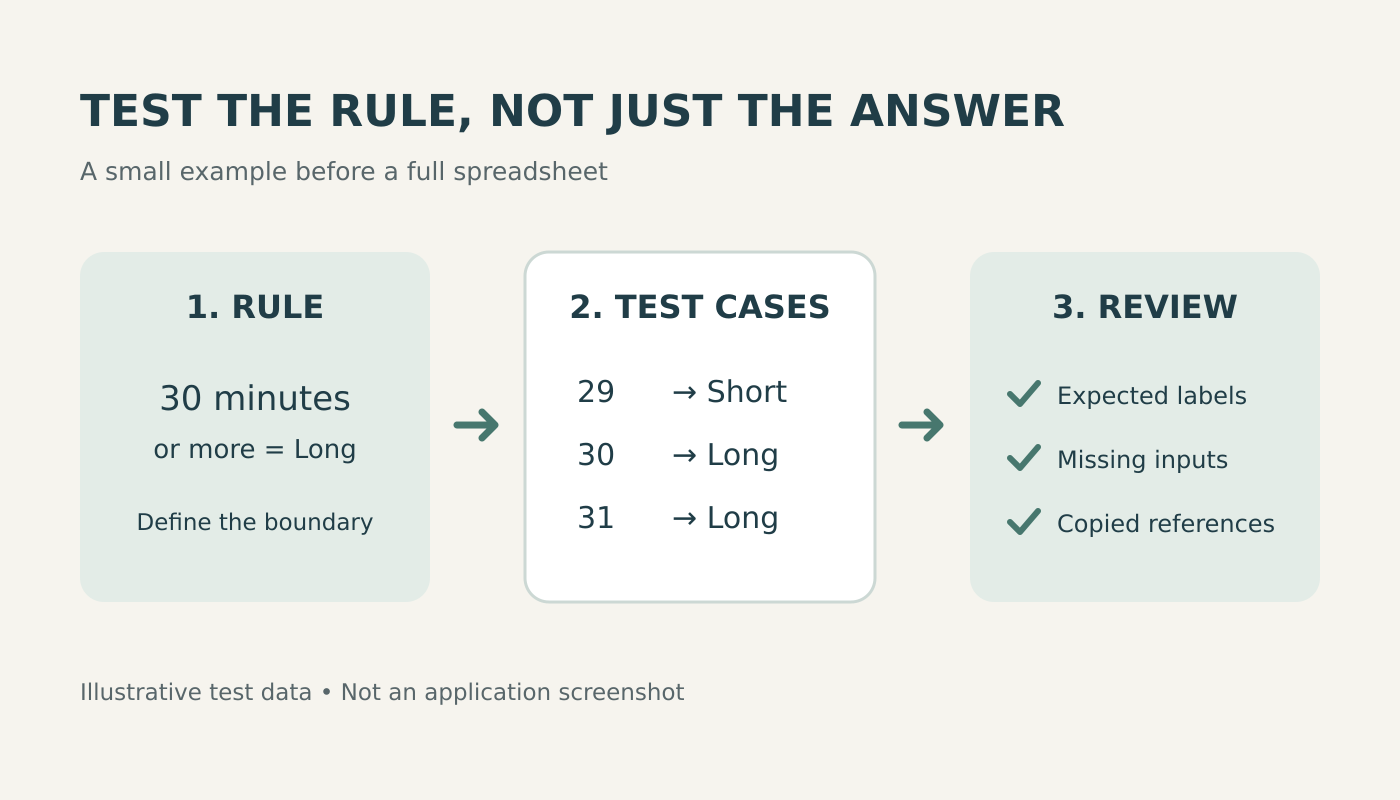
Suppose column B contains the number of minutes spent on an activity. You want column C to label each entry. Put the threshold, 30, in cell F2. Define the rule in ordinary language:
- A numeric duration of 30 minutes or more is Long.
- A numeric duration from zero up to, but not including, 30 is Short.
- An empty cell or a formula returning an empty string is Missing.
- Text, including a number stored as text, or a negative duration is Check input.
- The threshold must stay linked to F2 when the formula is copied down.
Those choices are intentional. Another worksheet might accept numbers stored as text or require whole minutes. Decide that policy first; do not let the AI choose silently. For this exercise, F2 must contain a valid nonnegative number, and fractional minutes are allowed.
2. Use a small, fictional test sheet
Create a separate sheet with headers Case in A1, Minutes in B1, Actual in C1 and Expected in D1. Enter these expected labels yourself before asking the AI for help.
| Row | Input in column B | Expected label | What it checks |
|---|---|---|---|
| 2 | 29 | Short | Below the threshold |
| 3 | 30 | Long | Exactly at the boundary |
| 4 | 31 | Long | Above the threshold |
| 5 | 0 | Short | Zero is valid, not missing |
| 6 | Leave the cell empty | Missing | No recorded duration |
| 7 | Enter '30 to store 30 as text |
Check input | A numeric-looking string |
| 8 | -1 | Check input | An invalid negative duration |
| 9 | Enter the formula ="" |
Missing | An empty-string result |
| 10 | 29.5 | Short | A permitted decimal |
The table is deliberately small enough to inspect without another formula. Replace private names with invented labels such as Activity A. If you need help with a real workbook, share only the minimum approved structure and synthetic examples—not hidden tabs, credentials or sensitive records.
3. Ask for an explanation, not just an answer
Give the assistant your spreadsheet application, function language, cell layout and exact rule. For example:
Write a formula for C2 using English function names. B2 contains activity minutes; F2 is the threshold. A valid nonnegative number at or above the threshold is Long, otherwise Short. Empty cells and empty-string results are Missing. Text and negative numbers are Check input. Keep F2 fixed when copying down. Explain each condition and state any assumptions. Do not change the input data.
A candidate formula for that rule is:
=IF(B2="","Missing",IF(NOT(ISNUMBER(B2)),"Check input",IF(B2<0,"Check input",IF(B2>=$F$2,"Long","Short"))))This example uses commas and English function names. Adapt syntax to your application’s language and regional settings rather than assuming a pasted formula will parse everywhere.
Read the branches in order: missing value, nonnumeric value, negative value, then threshold comparison. Google’s IF documentation explains the true and false result positions. Its ISNUMBER documentation confirms that a numeric string is not a number for that test. The missing-value check follows the empty-string comparison pattern described in Microsoft’s blank-cell guidance.
4. Test copying, not only the first result
Enter the candidate in C2, then fill it through C10. Compare every actual label with the expected label beside it. Inspect the formula in C3 and C10, not just their displayed results.
In C3, the duration reference should become B3, while the threshold should remain $F$2. In C10, it should use B10 and the same fixed threshold. Microsoft documents how relative and absolute references behave when copied. The dollar signs here protect the threshold’s row and column; they do not freeze the duration input.
Now temporarily change F2 from 30 to 31. The 30-minute case should switch to Short, while 31 should remain Long. Restore F2 to 30 afterward. This catches a formula that hard-codes 30 instead of using the threshold cell.
Check the edges of the range
Add a fresh 45-minute case below the test rows. Confirm that the formula actually reaches it and points to that new row. For formulas that summarize a range, check the first and last intended records, headers and totals separately. A correct calculation over an incomplete range still gives an incomplete answer.
5. Keep failures visible while debugging
Do not accept “all checks passed” from the same assistant as your only evidence. If row 3 returns Short, compare the formula with the inclusive rule: >= is not the same as >. If the threshold shifts as you copy, inspect the reference rather than rewriting the whole sheet.
Avoid wrapping everything in IFERROR(...,"") merely to make errors disappear. IFERROR replaces an error with another result; that can conceal a broken reference while leaving the underlying problem unresolved. This exercise deliberately leaves existing spreadsheet errors visible for investigation. It does not validate every possible cell type or a damaged threshold cell.
Before using the formula in your real workflow
- Save a recoverable copy and keep the original data unchanged.
- Record the plain-language rule, formula and test cases together.
- Check boundaries, missing values, input types and copied references.
- Repeat the checks after changing columns, thresholds or input formats.
- Use a separate review for high-consequence calculations; this small test is not a universal correctness guarantee.
The same habit applies whether you ask a chatbot or use a connected tool such as DeepCell: decide what the result should mean, then verify it independently. If the results feed a visualization, continue with our AI-generated chart checklist before sharing it.